
List View
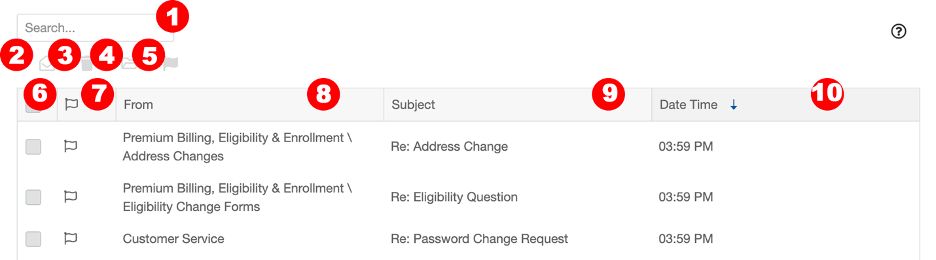
Search: Enter a keyword into the search field to search the emails in this folder.
Mark as read/unread: When an email is selected using the checkbox, click the envelope icon to mark the email as either read or unread.
Send to Trash: When an email is selected using the checkbox, click the trash icon to send the email to the trash folder. (Emails sent or received in this portal cannot be permanently deleted.)
Move to saved: when an email is selected using the checkbox, click the folder icon to move the email to the saved folder.
Flag: When an email is selected using the checkbox, click the flag icon to flag the message.
Select: Clicking the checkbox in the header will select all messages that are visible in the list. To select a single message, click the checkbox to the left of that message.
Flag: Clicking the flag icon in the header will flag all messages that are visible in the list. To flag a single message, click the flag icon to the left of the message.
From: This column shows the email topic.
Subject: This column shows the subject of the emails.
Date/time received: This column shows the date and time email was received. The email list is sorted by this column by default. You can click any column header to re-sort the messages.*
*Clicking once will sort in ascending order, clicking a second time will sort in descending order, clicking a third time will remove the sort from the column.
List View Options

When hovering over an email line in the list view, the following options appear, and can be executed by clicking the corresponding icon.
Trash: Send the highlighted email to the trash folder.
Mark as read/unread: Mark the highlighted email as either read or unread.
Reading Pane
The following functions are available when the email is open in the reading pane.
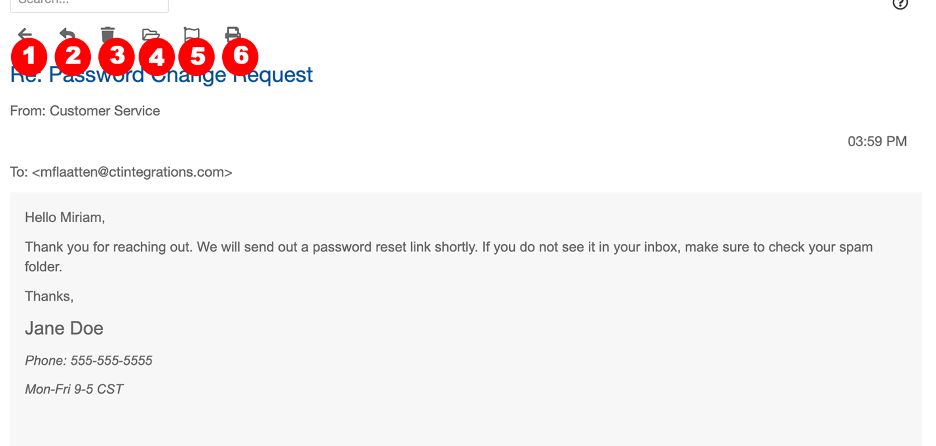
Back Button: Takes you back to the folder list view and may prompt you to save your progress.
Reply: Allows you to respond to the email.
Trash: Sends the Email to the trash folder. (Emails sent or received in this portal cannot be permanently deleted.)
Move to Saved: Moves the email to the saved folder.
Flag: Flags the email.
Print: Prints the email.